Updated October 14, 2026. Written for LightCraft 0.7.1 (what changed since).
Which RAW files open
LightCraft has its own raw decoders, written in Rust and compiled into the browser build. What they read in version 0.7.1:
| Format | Cameras | What you get |
|---|---|---|
| DNG | Adobe DNG, including phone raws (Apple ProRAW, Google Pixel and other Android phones) | Full raw decode, with the colour matrices and lens corrections stored in the file |
| CR2, CR3 | Canon | CR2: full decode. CR3: standard RAW and C-RAW decode; other CR3 variants open as the embedded preview |
| ARW | Sony | Full raw decode, except the 12-bit compressed files of the DSLR-A200 to A390 and A850, which open as the embedded preview |
| NEF | Nikon | Uncompressed, lossless and lossy compressed files decode; High Efficiency (HE) NEF opens as the embedded preview |
| RAF | Fujifilm, Bayer and X-Trans | Uncompressed, lossless and lossy compressed files decode |
| RW2, RWL | Panasonic, Leica | Full raw decode, with the distortion data the camera writes into the file |
| PEF | Pentax | Full raw decode |
| ORF, SRW | Olympus, Samsung | Uncompressed files decode; compressed files open as the embedded preview |
An embedded-preview file is still useful: you can rate it, crop it and move its sliders, but you are editing the camera's JPEG, with its white balance baked in and its clipped highlights gone for good. In the grid, those files carry an amber Preview pill in the corner of the thumbnail. Canon owners have the most to check, because CR3 comes in several variants; opening CR3 files online goes through them and the DNG workaround.
JPEG, PNG, TIFF, WebP, JPEG XL, GIF, BMP and PSD composites open too. HEIC and HEIF photos don't: the browser build is compiled without that decoder. For a specific body, the camera coverage list says whether files from it have been checked.
Edit a RAW file, step by step
- Open the editor. The first visit downloads about 20 MB, then a new library opens with a set of demo photos.
- Drag your files from the file manager onto the LightCraft window. File › Import Photos… (⌘⇧I on a Mac, Ctrl+Shift+I elsewhere) works too, but its file list only offers DNG, CR2, NEF and ARW among the raw types, so drag CR3, RAF, RW2, ORF and PEF files.
- LightCraft copies each file into its library in your browser and shows it in the grid. Files you already imported are skipped.
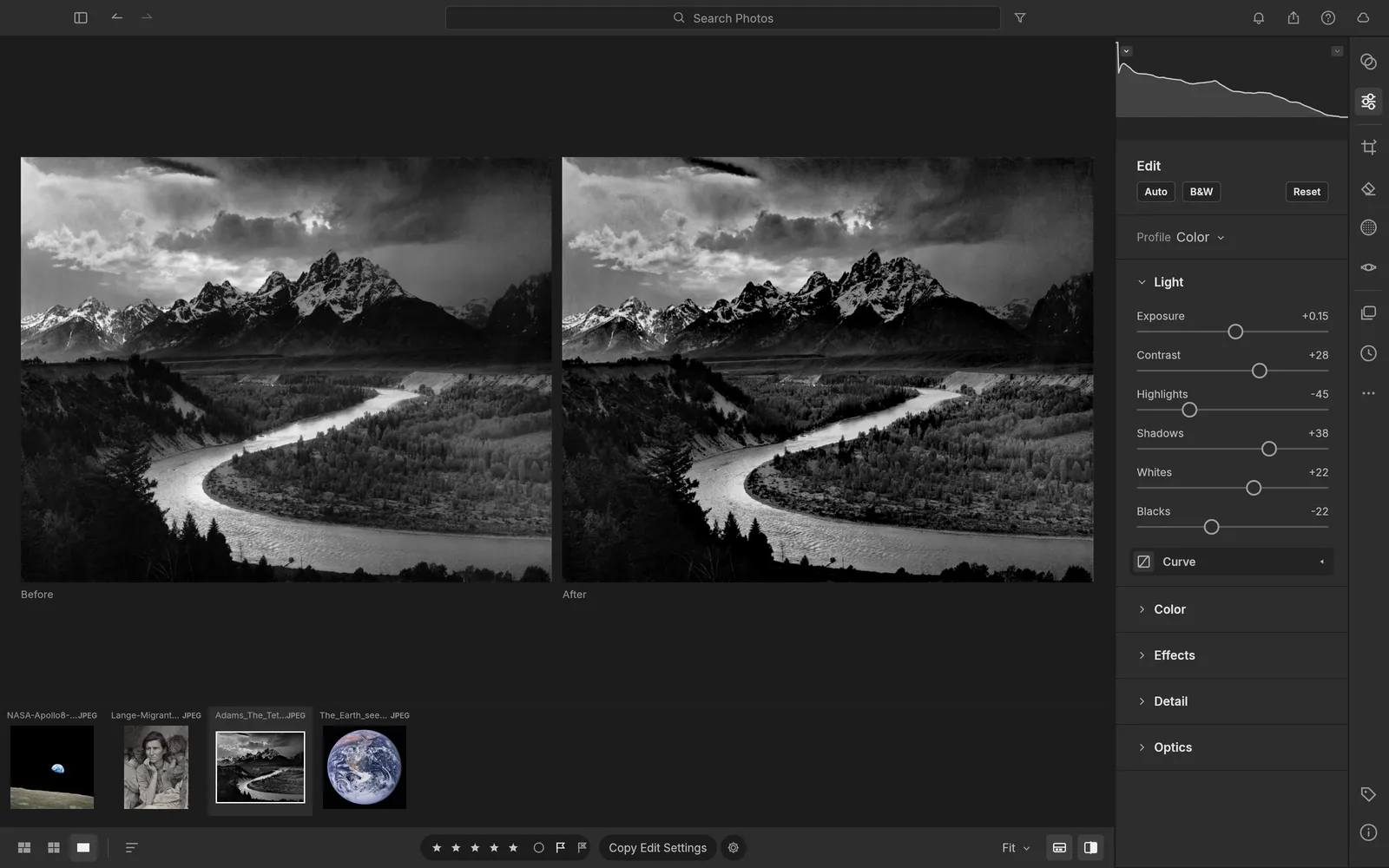
- Select a photo and press E. Work from the top: Light (Exposure, Highlights, Shadows), then Color (white balance in Kelvin for raw files, Vibrance), then Effects and Detail (sharpening and noise reduction). If the raw looks dark and flat, Shift+A (Auto Settings) gives you a starting point.
- Hold \ to see the original, or press Y for before and after side by side.
- Press Shift+E (or File › Export…), pick a format and a size, and click Export. Each file arrives as a normal browser download.
The Export dialog lists JPEG, PNG, TIFF, PSD, WebP, AVIF, JPEG XL, DNG and Original files. In the browser, AVIF and JPEG XL stop with "not available in this build": both encoders are compiled into the desktop app only. DNG writes the raw data with your edits embedded, which suits handing a raw to another editor; Original files gives back the untouched file with an XMP sidecar holding the edits. For JPEG quality, sizes and batch export, see converting NEF and ARW files to JPG.
What you can do to a RAW file
Highlight and shadow recovery has real room. The pipeline works in linear, wide-gamut floating point, so Highlights at -100 pulls a bright sky back without the grey halo a simple curve leaves, and Shadows opens dark foliage.
White balance works by temperature and tint, with As Shot, Auto, Daylight, Cloudy, Shade, Tungsten, Fluorescent and Flash presets, or the eyedropper on something neutral. Profiles set the starting look: Color, Neutral, Vivid, Landscape, Portrait and Monochrome are LightCraft's own, each with an Amount slider.
- Masks: brush, linear and radial gradients, colour and luminance range, Sky, Subject and Background, each with 15 local sliders. Sky and subject detection use classic image analysis rather than a trained model, so check the edges on hair and trees.
- Crop and straighten: ratios such as 4:5, 2:3 and 16:9, thirds and golden-ratio overlays, Auto straighten and Upright perspective correction.
- Presets: 18 built in, plus your own, and copy or sync settings across a whole shoot.
Colour is where results differ most from the camera's JPEG. DNG files carry their own colour matrices. For Sony, Nikon, Panasonic, Fujifilm and Canon CR3 files, LightCraft fits its colour to the JPEG preview inside the raw, with measured profiles for four bodies (Sony A7CR and A7 IV, Fujifilm X-H2S and X-T4). Other raws, and fits that fail LightCraft's checks, start from a neutral matrix and come out darker and less saturated: set white balance with the eyedropper, then raise Vibrance. There is no lens profile database either, so only the corrections stored in DNG, Panasonic and Leica files (and the distortion data of the Sony A7R IVA) are applied automatically; the Optics panel has manual distortion and vignetting sliders.
Keep your library safe
The browser version keeps the library, including a copy of every imported original, in your browser's storage for this site. That is why your photos and edits are still there tomorrow, but it is not a backup.
- Keep your original files where they are now. Importing copies them; it doesn't move them.
- Run File › Back Up Library… once you have edits worth keeping. It downloads a zip of the catalog and every stored original, and File › Restore Library from Backup… reads it back, in this browser or another one.
- Clearing this site's data deletes the library, and in a private window it is gone when the window closes.
- Work in one tab. A second tab shows "LightCraft is already open in another tab" instead of opening the library twice.
When the desktop app is the better fit
The browser build is the same LightCraft interface, rendering on your processor in up to four background workers. The desktop app renders on the graphics card, works with folders on your disk and their XMP sidecars, imports a Lightroom Classic catalog, exports AVIF and JPEG XL, and runs an MCP server for AI agents. For a few photos or a weekend's shoot, the browser is enough; for a wedding of 2,000 raws, install it. On a Chromebook the browser is the only route, and editing photos on a Chromebook covers its storage limits.
If you would rather not set the sliders yourself, the AI panel asks a vision model to propose settings for the selected photo, using EasyRunCraft credits. Coming from Adobe? How LightCraft compares with Lightroom lists what carries over and what doesn't.