Updated October 14, 2026. Written for WordCraft 0.6.1 (what changed since).
Steps
- Open the editor at easyruncraft.com/wordcraft/editor. The first visit downloads the app, 12 to 15 MB compressed; after that it opens from your browser's cache.
- Open the file. Drag the .docx onto the page, or click the File tab, choose Open and then Browse…. The browser hands WordCraft the file; nothing is sent anywhere.
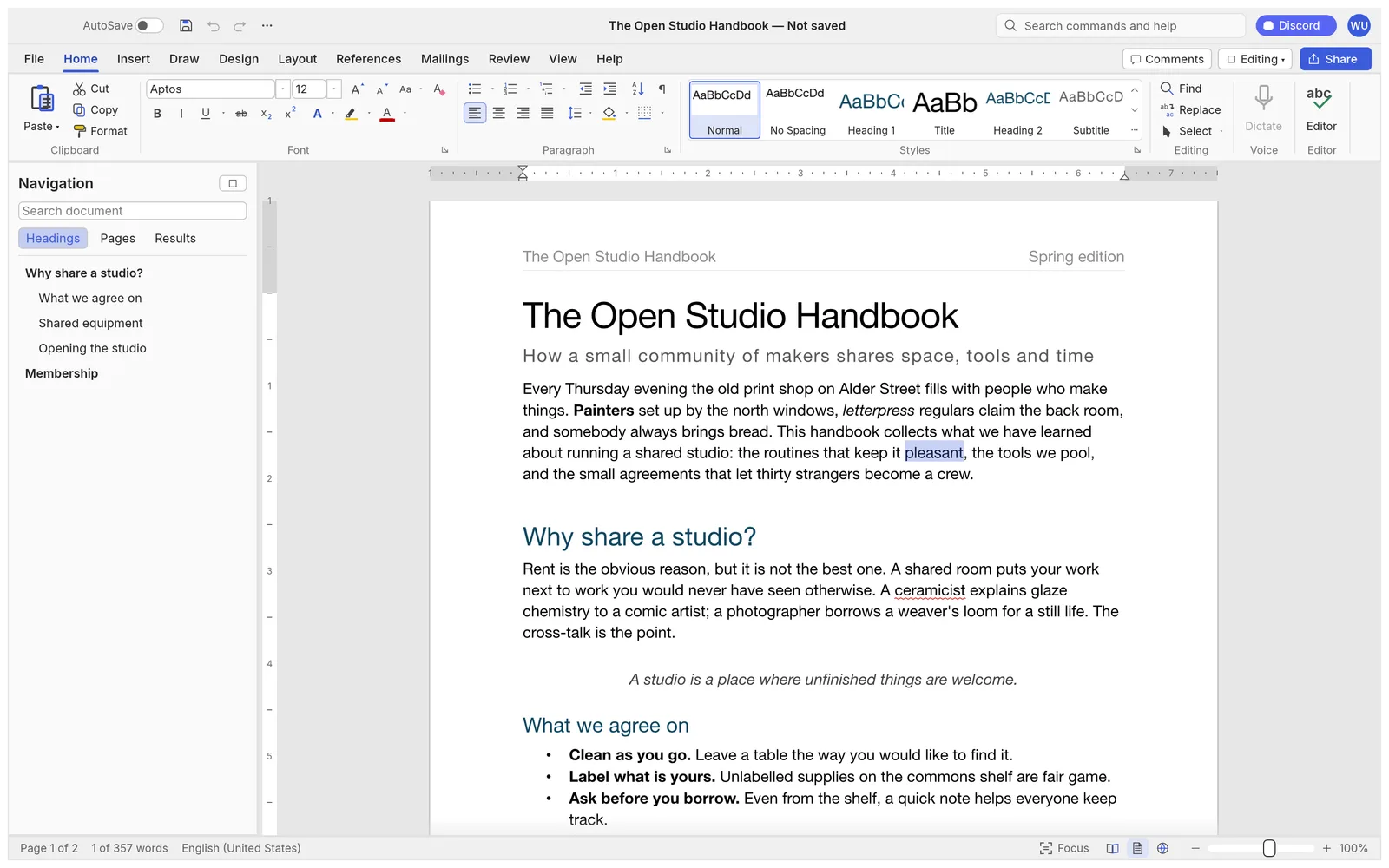
- Edit it. The ribbon has Word's tabs: Home for fonts, paragraphs and styles; Insert for tables, pictures, shapes, links, headers and footers; Layout for margins, columns and breaks; References for contents and footnotes; Review for comments and Track Changes. If you can't find a command, type its name in the search box at the top of the window.
- Save with Ctrl/⌘+S or File › Save. Chrome and Edge open a save dialog so you can pick the folder and name; Firefox and Safari put the file in Downloads under the document's own name.
Which files it opens and saves
| Format | Open | Save |
|---|---|---|
Word document .docx, and .docm, .dotx, .dotm | Yes | Yes, in the same format. Macros in a .docm are kept but never run |
Word 97-2003 .doc | Yes, except password-protected files and files from Word 6 or Word 95 | No: Save writes a .docx (see .doc to .docx) |
OpenDocument .odt, Rich Text .rtf, web page .html | Yes | Through File › Export |
Markdown .md, LaTeX .tex, plain text .txt | Yes | Through File › Export (see Markdown to Word) |
| No | Through File › Export (see Word to PDF) |
Save keeps a Word file in its own format and turns everything else into a .docx, so an .odt or a Markdown file you open and save comes out as a Word document. File › Export writes a copy in any of the other formats and leaves the open document as it was.
What comes through from Word
Styles and themes, numbered and bulleted lists, tables with their table styles, headers and footers, sections and columns all open as they were and are written back on save. So are footnotes and endnotes, a table of contents, citations, cross-references and fields. Comments and tracked changes from other people show up in the Review tab, where you can accept or reject them; reviewing with track changes covers that in detail.
Pictures, shapes, text boxes and equations can be edited. Charts and SmartArt from Word are drawn from the data stored in the file and saved back intact, but you can't edit them.
The weak point is layout. WordCraft's .docx fidelity is about 65%, and its pagination doesn't match Word's line for line yet, so a page break or a picture can land somewhere else. Word opens the files it saves. For a contract or a form laid out to the millimetre, open the result in Word, or whatever your reader uses, before you send it.
Fonts
A web page can't use the fonts installed on your computer. The browser version starts with the fonts built into WordCraft (Source Serif 4, Source Sans 3, Inter, JetBrains Mono, and faces for Chinese, Japanese and Arabic) and shows a document set in Calibri or Times New Roman in the closest of them. The font names stay in the file, so Word shows the original fonts again.
If you have the font as a file, choose Add Font… at the end of the font list on the Home tab and pick a .ttf, .otf, .ttc, .woff or .woff2. The browser keeps fonts you add for your next visit. The desktop app uses your installed fonts directly.
Working in the browser
There is no autosave: a web page can't write to your files, so press Ctrl/⌘+S as you go. If you close the tab with unsaved changes, the browser asks first.
Settings reset on every visit. WordCraft starts with the default theme and the user name "WordCraft User", so set your name in File › Options before you comment or track changes, or every change is credited to "WordCraft User".
Insert › Pictures opens a file picker, and a screenshot on the clipboard pastes straight into the page. On a phone the editor runs, but the ribbon is built for a keyboard and a wide screen; we'd use it there for reading and a quick fix, not for real editing.
To proofread, summarize or translate the text, open the AI writing assistant beside the editor and choose or drop the saved .docx in its panel. In Firefox and Safari the file you save lands there by itself.
If you'd rather install something, the desktop app is the same program with AutoSave, remembered settings and your own fonts. Online or desktop compares the two for all the Craft apps.