Updated October 14, 2026. Written for FilmCraft 0.7.2 (what changed since).
Quick start
- Open the editor and wait for the demo project to load.
- Import the video: drop the file anywhere on the editor, or use File › Import. It appears in the Project panel.
- Select the clip in the Project panel and choose File › New › Sequence From Clip. The new sequence matches the clip's frame size and frame rate, with the clip already on the timeline.
- Cut with one of the methods below.
- Choose File › Export › Media…. Export mode opens on H.264 MP4; press Export, keep the tab open while it runs, and the MP4 downloads.
Click on the timeline before using shortcuts, so key presses go to the editor and not to the page.
Trim the start and end
Move the playhead to where the video should start and press Q: everything before the playhead on that clip is trimmed off and the rest slides left. Move to where it should end and press W to trim off everything after. These are Ripple Trim Previous Edit and Next Edit to Playhead, so no gap is left behind.
To trim by dragging, press B for the Ripple Edit tool and drag the start or end of the clip. The Selection tool (V) trims the same way but leaves a gap, which Sequence › Close Gap removes.
Cut out a part in the middle
Both ways below pull the rest of the video left, so nothing is left empty.
- With In and Out marks: put the playhead at the start of the part to remove and press I, move to its end and press O, then press ' (apostrophe) for Extract. ; (semicolon) is Lift, which removes the part but leaves a gap.
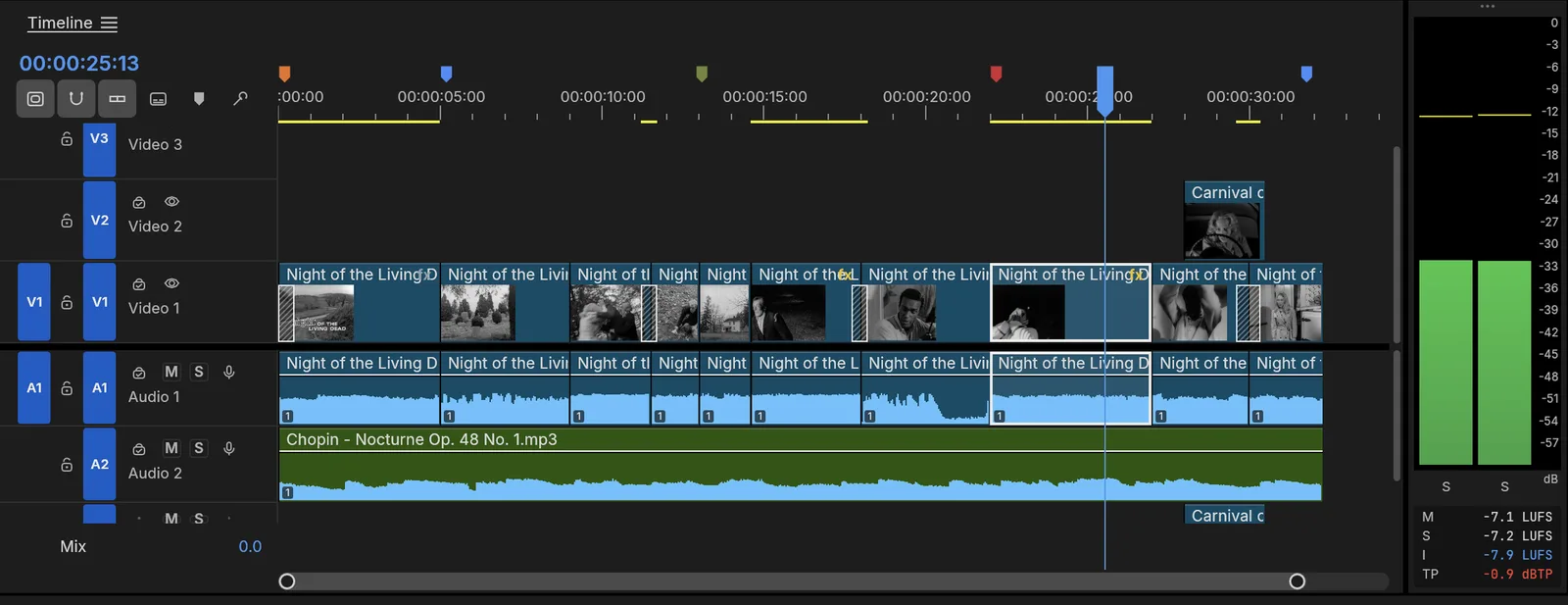
- With razor cuts: press C for the Razor tool and click the clip at both ends of the part, or press ⌘K (Ctrl+K) to add an edit at the playhead. Select the piece in between with the Selection tool and press Shift+Delete for Ripple Delete.
Export only part of a sequence
Mark In and Out on the timeline around the part you want, open File › Export › Media…, and set the range to Source In/Out instead of Entire Source. Only that stretch is encoded, which also makes it the quickest way to pull a short clip out of a long recording.
Join several clips
Import them all, then drag them from the Project panel onto the timeline one after another. For a dissolve between two clips, drag Cross Dissolve from Video Transitions › Dissolve in the Effects panel onto the cut, or select the clip and choose Sequence › Apply Video Transition. Its shortcut, ⌘D (Ctrl+D), is the browser's bookmark key, so use the menu. The whole sequence exports as one MP4.
Save the cut, undo, add captions
⌘Z or Ctrl+Z steps back through the last 200 edits, and the History panel lists them. File › Save downloads the project as an .fcproj file; File › Open Project… brings it back later, in the browser or the desktop app.
Without saving, the browser build still writes a recovery snapshot every 5 seconds while there are unsaved changes, and keeps copies of imported files up to 4 GiB in the browser's storage for this site. The next visit reopens it with "Recovered unsaved changes". Clearing the site's data removes that copy, so download the .fcproj for anything you want to keep.
For subtitles, drop an .srt next to the video (adding SRT subtitles covers styling and burn-in), or let the AI subtitle generator transcribe the sequence. Most of the keys above are Premiere Pro's; FilmCraft as a Premiere Pro alternative lists what else carries over.
FAQ
Is there a watermark or a length limit?
No watermark, no account and no length limit set by the app. Long or 4K files are limited by your computer: the browser build runs on one thread and keeps an export in memory until it downloads, so an hour of 4K belongs in the desktop app.
Can I cut a video without re-encoding it?
No. FilmCraft has no smart render: every export renders the timeline and encodes it again with its own H.264 encoder. The same step is what lets you join clips, add transitions and titles, and change the frame size.
Which files can I trim?
MP4 and MOV (H.264, HEVC, ProRes, DNxHR, VP9, AV1), WebM and Matroska, AVI (H.264, HEVC, Motion JPEG), MXF and MPEG transport streams, plus audio files such as WAV, MP3 and AAC. FilmCraft's own H.264 decoder reads 8-bit 4:2:0, so 10-bit 4:2:2 files from mirrorless cameras open only if your browser can decode them.