What you can do with LightCraft
- Develop RAW photos using exposure, color and other supported photo controls.
- Use presets and local adjustments to refine the look of a picture.
- Export finished photographs in a format supported by the editor.
LightCraft FAQ
What is LightCraft?
LightCraft is an online photo and RAW editor. It helps you organize photos, adjust exposure and color, and export a developed copy of your image.
Which RAW photos can I open in LightCraft?
LightCraft can develop supported RAW camera files. Compatibility depends on the camera and browser build, so open a sample from your camera before importing a large batch.
When should I choose LightCraft as my online photo and RAW editor?
Choose LightCraft for developing camera files and adjusting light or color across a photo workflow. For masks, editable type, or layered PSD work, use a layer-based image editor.
How do I get started with LightCraft online?
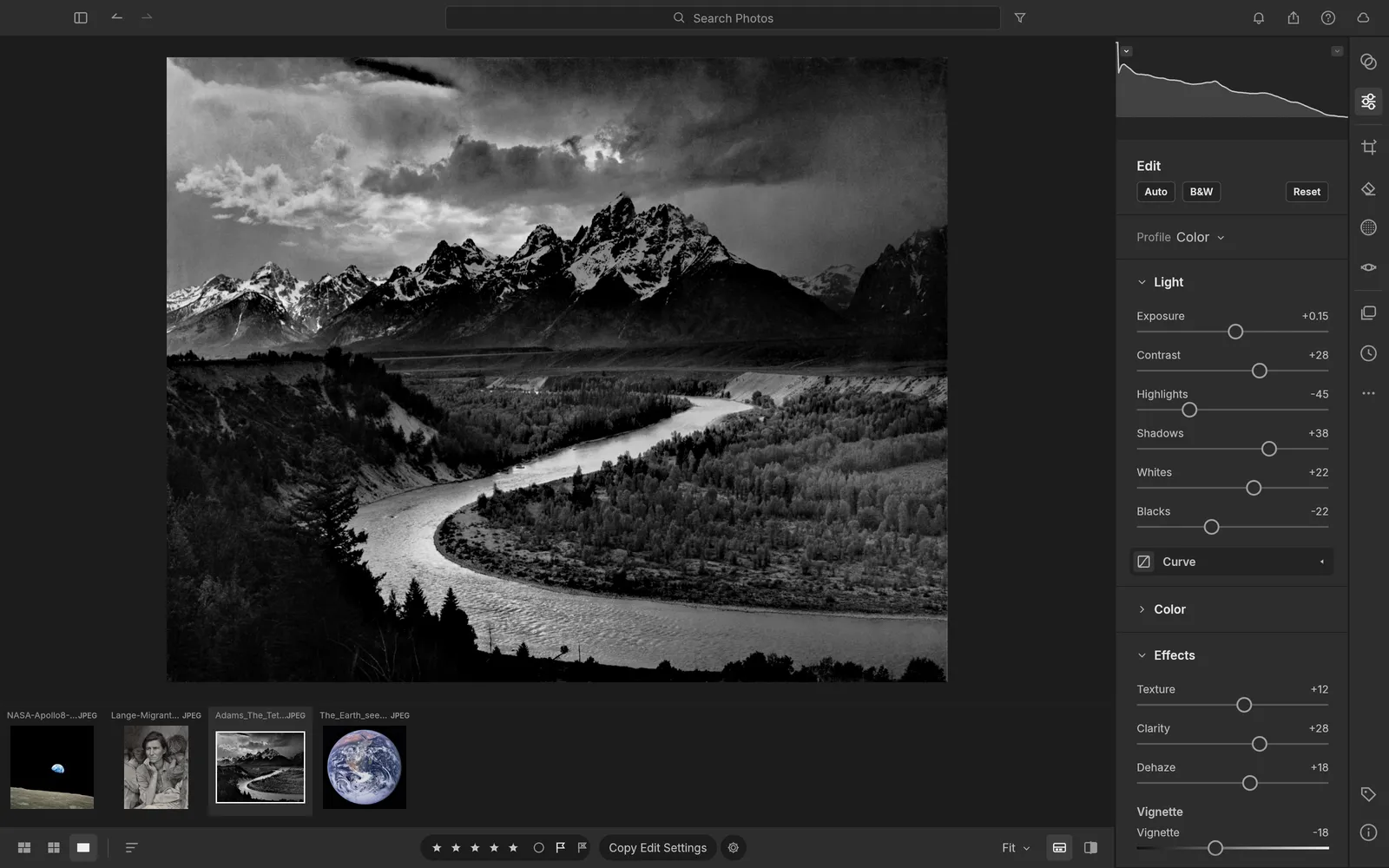
Open the LightCraft editor in your browser. Open a supported image or RAW file from your device and select it in the library. Adjust the light and color controls, compare the result, and refine areas that need attention.
Can I apply presets or adjust only part of a photo in LightCraft?
Yes. Apply a preset to establish a look, then use the development controls and supported local adjustments to refine individual areas.
Can LightCraft AI adjust my photo settings?
Yes, for supported development settings. Describe the adjustment you want and compare the result in the editor.
Is LightCraft free on EasyRunCraft?
Yes. You can use LightCraft for manual editing on EasyRunCraft without creating an account. For optional AI features, use shared credits.
How do I export a developed photo from LightCraft?
Export the finished photo from the editor in a supported image format. Keep your original RAW file if you want to develop it again later.
