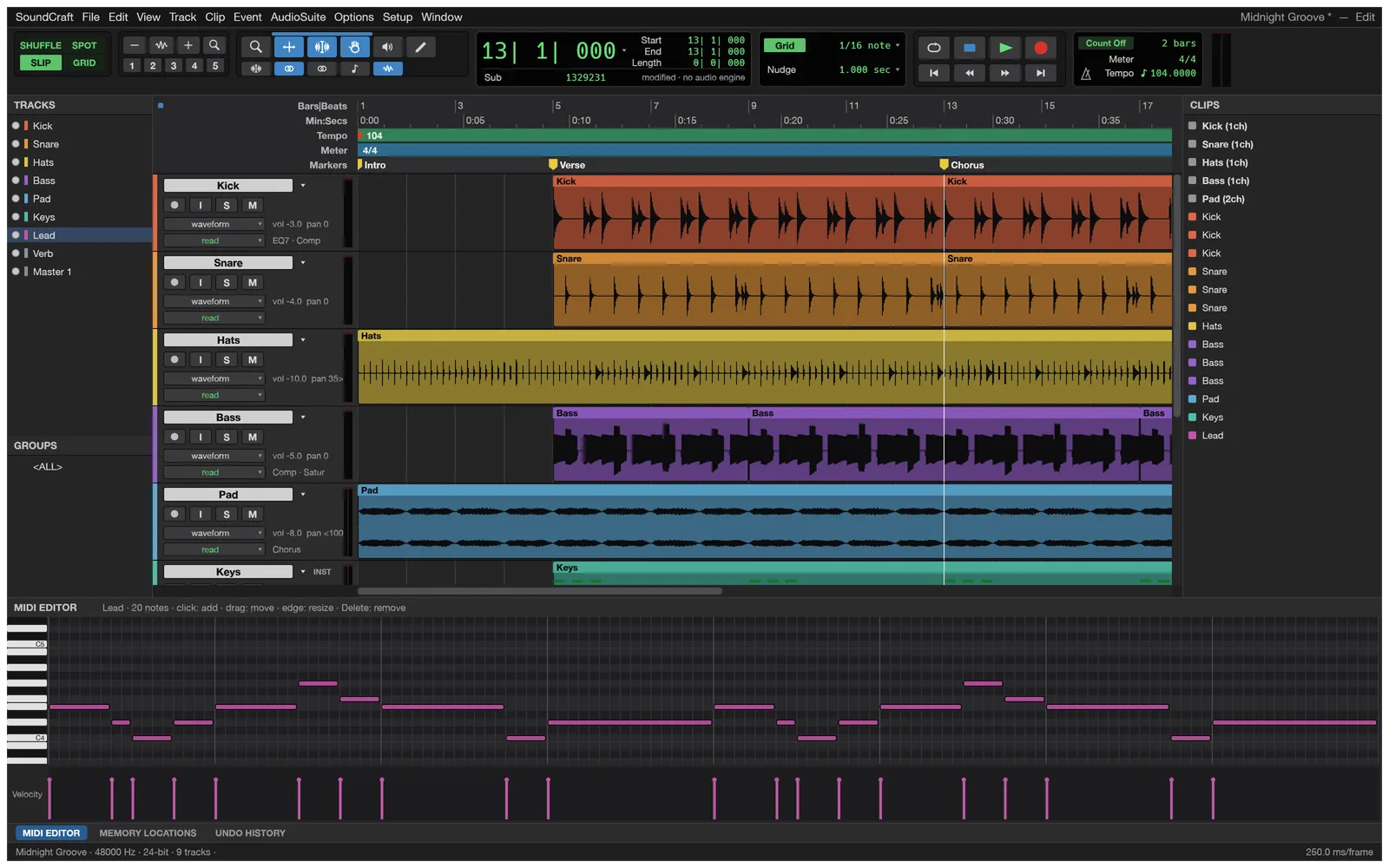
What you can do with SoundCraft
- Import supported audio or MIDI into a session.
- Adjust track levels, pan and mute while reviewing the mix.
- Save a session or bounce supported audio output.
SoundCraft FAQ
What is SoundCraft?
SoundCraft is an online audio editor and mixer for working with tracks and clips. Import supported audio or MIDI, arrange a session, and adjust levels, pan, and fades.
Can I edit and mix multiple tracks in SoundCraft?
Yes. Arrange clips across tracks and use level, pan, and mute controls while listening to the mix.
When should I choose SoundCraft as my online audio editor and mixer?
Choose SoundCraft for arranging and mixing existing media in your browser. Use the desktop edition when you need to record audio or use desktop-only features.
How do I get started with SoundCraft online?
Open the SoundCraft editor in your browser. Open the demo song to explore, or start an empty session and import your media. Arrange clips and adjust the native audio controls. Click into the editor when the browser requires interaction before sound can play.
Can SoundCraft open MIDI files?
Yes. Import supported MIDI into an audio session. You can explore the demo session first to get familiar with the timeline and mixer.
What can SoundCraft AI change in a session?
It can adjust supported track volume, pan, and mute settings, along with clip gain and linear fades. These editing commands use session metadata.
Is SoundCraft free on EasyRunCraft?
Yes. You can use SoundCraft for manual editing on EasyRunCraft without creating an account. For optional AI features, use shared credits.
How do I download my SoundCraft mix?
Bounce the mix to a supported audio output. Save the session separately if you want to reopen it and edit the individual tracks.
