What is TextureCraft?
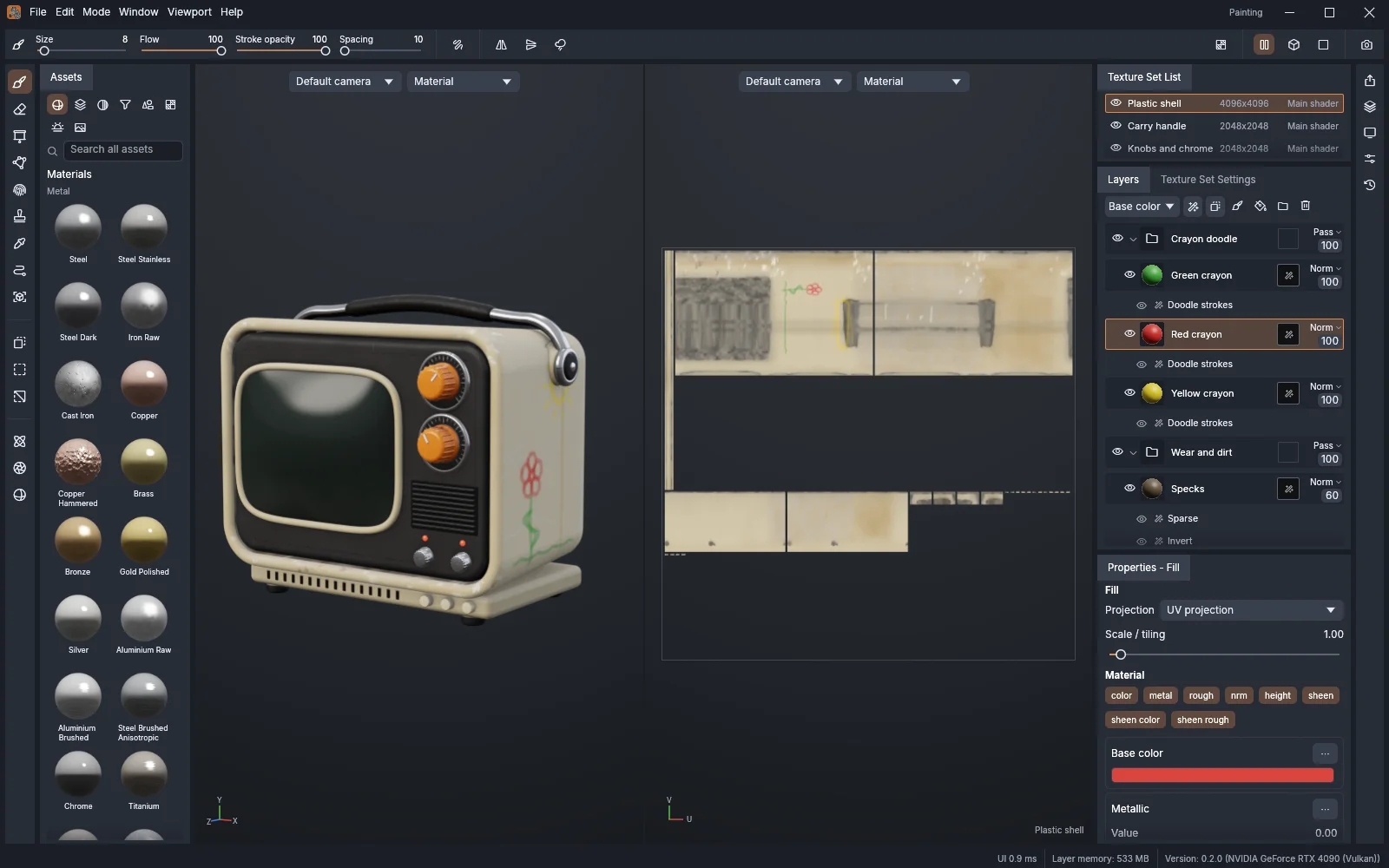
TextureCraft is an open-source 3D texture painting application. Work on a model in a 3D viewport and its UV layout, build materials with a layer stack and keep an editable .tcraft project.
Use it for a game prop, a product model or a material study. EasyRunCraft hosts a community browser build with the original painting tools and an integrated Agent for supported material edits.
Why use TextureCraft online on EasyRunCraft?
Start without installation
Open a sample project or import a supported model. Ordinary manual work happens locally in the browser.
See the material on your model
Use the 3D and 2D views while adjusting material channels, layers and masks.
Keep a portable project
Download a .tcraft project to retain editable layers. Export finished textures for the next application.
Start with the free manual tools. When you want AI help, one EasyRunCraft account and credit balance covers supported hosted services across the suite, including the built-in Agent and MCP processing.
What can you do with TextureCraft?
Paint across the 3D surface
Brushes, fills and supported painting tools work on the model and its UV layout.
Build PBR materials
Combine base color, roughness, metallic and other supported channels in fill and paint layers.
Use masks and procedural effects
Refine where a material appears with masks, generators and supported effects.
Bake and export
Use the build’s mesh map baking and texture export options. Browser resources and GPU support affect large projects.
A first material: a copper prop
Start with a built-in mesh, add a copper-colored fill layer and adjust metallic and roughness. Compare it under the viewport lighting, refine the finish and save a project copy before exporting textures.
Files, projects and exports
| Format | Use it for | What to check |
|---|---|---|
| .tcraft | Save and reopen editable projects. | Download a copy before closing or clearing site data. |
| GLB / OBJ / STL / PLY | Import supported model files. | Models need useful UVs; check the import result. |
| Texture images | Export channels through File Export Textures. | Choose the output preset, resolution and channel packing for your destination. |
Keep an editable project as well as the finished output. The browser and desktop editions can use different releases; check the chosen build before depending on a particular format or feature.
How to use TextureCraft online
- Open a model. Start with a built-in sample or open your own supported file.
- Build the material. Paint manually, add layers and masks, or ask the Agent for a supported fill-layer change.
- Save and export. Download your .tcraft project and export the texture maps you need.
Keep downloaded project backups. Browser settings storage is not a cloud project library, and an account does not sync your models across devices.
Work with the built-in TextureCraft Agent
The integrated Agent inspects the current project and can add a fill layer, rename a layer, change visibility, adjust supported fill channels and undo an edit. It uses the same native engine as manual editing.
Document state is checked before edits. If the project changes while the Agent is working, start a fresh request. Painting strokes, mesh baking, project downloads and texture exports remain manual browser actions.
Add a fill layer named Copper with a copper base color, metallic 1 and roughness 0.35.
Review the result in the editor. Supported document edits use native undo, so you can reverse a change while keeping control of the project. AI assistance uses account credits; manual editing remains free.
Use TextureCraft through MCP
Hosted TextureCraft MCP processes uploaded, self-contained .tcraft projects. Your agent can inspect a project or add a bounded PBR fill layer and return an editable copy.
The hosted operations are listed in the TextureCraft MCP guide. They operate on an uploaded copy rather than controlling your browser tab.
Inspect prop.tcraft, then add a copper fill layer and return an editable project copy.
Connect Codex, Claude Code or a compatible client using MCP setup. The TextureCraft MCP guide lists available operations and limits. Your agent works on an uploaded copy and returns results; it does not control the project open in your browser. Download the output to keep it.
TextureCraft online or desktop?
The online editor is useful for immediate work and integrated AI help. Desktop provides direct filesystem workflows and the upstream CLI/MCP server. Large texture sets, batch exports and GPU-heavy rendering may suit an installed app better.
| Workflow | Online on EasyRunCraft | Original desktop app |
|---|---|---|
| Editing | Browser painting, materials and layers. | Native filesystem and GPU workflow. |
| AI | Shared EasyRunCraft account and credits. | Connect your own external agent to the upstream MCP server. |
| Saving | Download projects and texture exports. | Save directly to files on your device. |
Download the original desktop app
Open the TextureCraft releases on GitHub, expand Assets, and choose the package for your operating system and processor. Follow that release’s installation instructions. For immediate browser access, open the online editor.
TextureCraft guides and source
TextureCraft comes from the ArtCraft Team and its contributors. EasyRunCraft independently hosts the community browser build. Find the original code, documentation and releases in the TextureCraft GitHub repository; preserved license information is available through About & credits.
