Updated October 14, 2026. Written for CADCraft 0.6.2 (what changed since).
Start a drawing
- Open the editor at easyruncraft.com/cadcraft/editor.
- Start a metric drawing by typing
new {"metric": true}at the command line, or use File › New Drawing…. Draw at full size, 1 unit = 1 mm; theunitscommand only changes how numbers are shown. - Find the command line at the bottom of the window. Click in the drawing area and start typing; AutoComplete shows matching commands and aliases.
Typing coordinates
x,yis an absolute point, such as120,80.@dx,dyis relative to the last point:@120,0is 120 to the right.@distance<angleis polar:@50<45is 50 units at 45°.- With ortho (F8) or polar tracking (F10) on, point the mouse in a direction and type a distance.
Enter or Space finishes a command, or repeats the last one; Esc cancels. Words in [brackets] at a prompt are options you can click or type. The full list of aliases, function keys and snap overrides is in AutoCAD commands that work in CADCraft.
Draw a plate with holes
rectang 0,0 120,80draws the 120 × 80 outline.line 0,0 @120,0 @0,80 @-120,0 cdraws the same shape from single lines, andccloses it.circle 60,40 15adds a Ø30 bore at the centre, andcircle 15,15 4the first Ø8 hole.copythe small hole: select it, press Enter, type15,15as the base point, then105,15,105,65and15,65for the other three, and Enter to finish.fillet, thenrand10sets a 10 mm radius. Runfilletagain, choose the Polyline option (p) and pick the outline: all four corners round at once, becauserectangdrew one closed polyline.zoom efits everything on screen.
From here the usual editing commands take over. offset makes parallel copies for walls and borders, trim and extend cut or stretch to other objects, mirror and array repeat geometry, and chamfer bevels a corner. Each one prompts for what it needs.
Layers and dimensions
Format › Layers… (la) opens the Layer Properties Manager. Make OUTLINE, CENTER and DIM layers, each with its own colour and linetype, then select objects and pick a layer in the Properties palette to move them.
dimlinear 0,0 120,0 60,-10 dimensions the bottom edge: two points, then where the dimension line goes. dimradius and dimdiameter label arcs and circles. A dimension made by picking an object is associative, so it updates when you stretch or move that object. hatch fills a closed area when you click inside it.
Save the drawing
File › Save (Ctrl/⌘+S) downloads the drawing as a DXF that AutoCAD and other CAD and CAM programs open. A drawing started in CADCraft saves as DXF 2018. If the program at the other end is older, save a DXF 2000 with saveas {"path":"plate.dxf","version":2000}; that's the oldest version CADCraft writes, and it can't write R12.
For a PDF, SVG or PNG, type saveas {"path":"plate.pdf"} with the extension you want, which the DXF to PDF guide covers. To keep working another day, open the saved DXF again, as described in how to open a DXF file online.
Before you draw your own part
- Save often. The browser version has no autosave, and closing the tab loses anything you haven't downloaded. This site asks before you leave the page once you have drawn something.
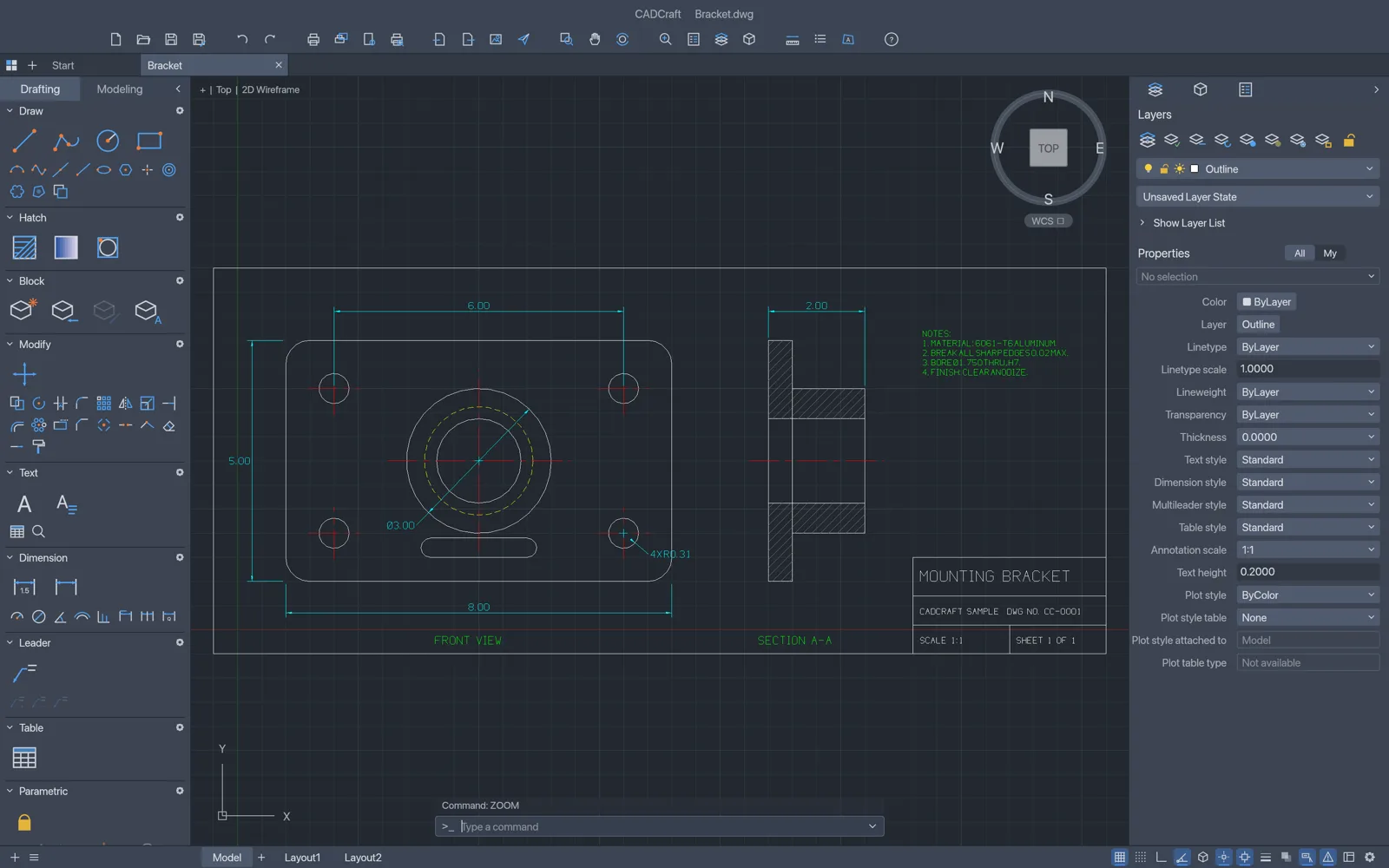
- Open the sample drawing, the bracket above, to see how its layers, dimensions and hatches are set up.
- The AI DXF generator drafts a first version from a sentence with sizes, such as "a 100 × 60 mm plate with four Ø6 holes 8 mm from each edge". You finish it with the commands above.
- DWG files and plotting layouts to PDF need the desktop app; the drawing itself is the same in both.
FAQ
Do I need to know AutoCAD to use CADCraft?
It helps, because CADCraft uses the same command names and the same command-line habits. Without it, the Tool Sets on the left and the menus run the same commands with a click, and AutoComplete lists matching commands as soon as you start typing a name.
Can I undo?
Yes. Ctrl/⌘+Z undoes and Ctrl/⌘+Shift+Z redoes. The u command at the command line also steps back one command at a time.