Updated October 14, 2026. Written for CADCraft 0.6.2 (what changed since).
Open the DXF
- Open the editor at easyruncraft.com/cadcraft/editor. The first visit downloads the app, about 5 MB; later visits open it from the browser's cache.
- Drag the DXF from your desktop onto the CADCraft window, or choose File › Open… and pick it. Each file opens in its own drawing tab.
- Fit it to the screen: type
zoom eat the command line and press Enter. Scroll to zoom, and drag with the middle mouse button to pan. - Switch to a layout with the tabs at the bottom (Model, Layout1…) to see the sheets the drawing was set up to print on.
ASCII DXF from R12 to 2018 opens, and binary DXF from R13 on, up to 256 MB per file. A file saved by AutoCAD 2019 or later is still a 2018 DXF inside, because Autodesk hasn't changed the DXF version since then.
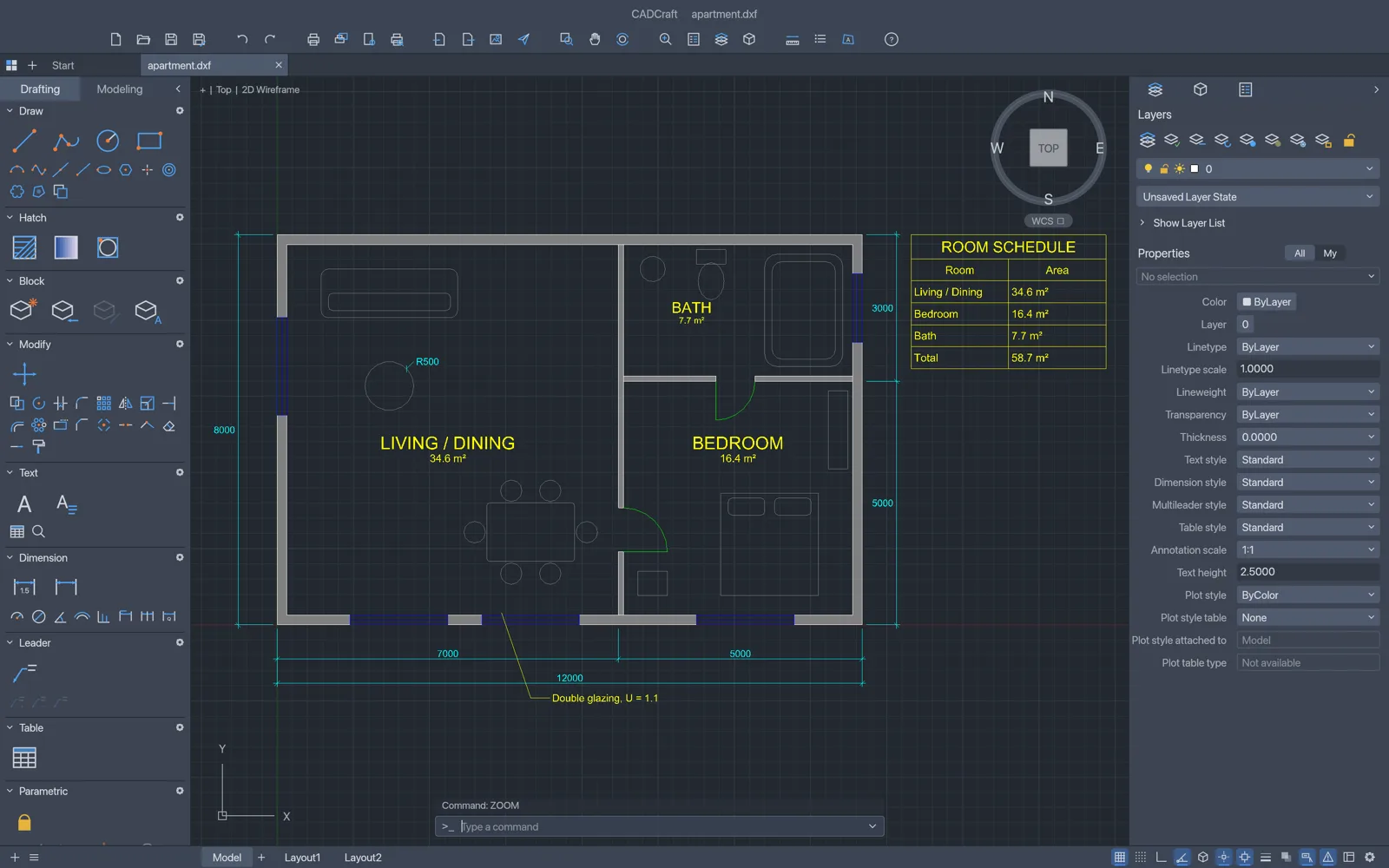
Find your way around the drawing
The Layers palette on the right turns layers on and off, freezes and locks them, and Format › Layers… opens the full Layer Properties Manager. On a busy plan, layiso is the quickest way in: pick one wall or one dimension and every other layer disappears until you run layuniso.
Click any object to see its layer, colour, linetype and geometry in the Properties palette. To find a room name or a part number, use Edit › Find…, which searches the drawing's text.
Measure distances and areas
dist(ordi): pick two points for the distance and angle between them. With object snaps on (F3), the cursor locks onto endpoints, midpoints, centres and intersections.area(oraa): pick corner points, or choose an object, for its area and perimeter.list(orli): select objects for their full geometry, such as a circle's radius or a polyline's length.id: pick a point for its coordinates.
You can also ask questions about the drawing in plain words. Save it as DXF, then open the Explain tab of the AI panel: it reads the layers, hole sizes, dimension values and text, and answers from them. The panel sends a text summary of the drawing to the AI provider you choose, never the file itself.
Save it as DXF
File › Save (Ctrl/⌘+S) downloads the drawing as DXF in the version it came in: a 2013 DXF goes back out as 2013. CADCraft writes 2000, 2004, 2007, 2010, 2013 and 2018, so an R12 file comes back as 2000, and a drawing you started in CADCraft saves as 2018. To pick the name or the version yourself, type saveas with options at the command line:
saveas {"path":"plan-edited.dxf"}saves under a new name.saveas {"path":"plan-2000.dxf","version":2000}saves a DXF 2000 for older software.saveas {"path":"plan.dxf","binary":true}saves binary DXF, which makes a smaller file.
Objects CADCraft can't edit, such as 3D solids, proxy objects and other programs' extended data, are written back as they were read (CADCraft's file-format notes list each object type). A few details of objects it does edit are still lost: per-viewport layer colour overrides, per-object multileader overrides and the UCS elevation, and it writes 36 header variables where AutoCAD writes about 280. Keep the original file. CADCraft is pre-alpha, and its DXF round trips are tested on drawings it made itself, not yet on files from other programs.
Export PDF, SVG or PNG
Type saveas {"path":"plan.pdf"} at the command line, or end the name in .svg or .png. The file downloads at once and shows model space fitted to the drawing; a PNG is 2400 × 1600 pixels. The drawing itself keeps its name and its unsaved changes. The Print dialog doesn't give you a file in the browser, so for a layout at a set scale, see how to convert DXF to PDF.
If you were sent a DWG
The browser build reads DXF only, and dropping a DWG on it shows "DWG files can't be opened in the web build yet; save as DXF". Convert it first with the free ODA File Converter, or open it in the CADCraft desktop app, which opens DWG from R13 to 2018. The desktop downloads also include a command-line tool: cadcraft-cli convert drawing.dwg drawing.dxf. How to open a DWG file for free walks through both routes.
Before you close the tab
The browser version has no autosave. Save before you close the tab; once you have clicked or typed in the editor, this site asks before you leave the page. If the drawing area stays blank or flickers, open the editor with ?webgl to switch from WebGPU to WebGL2. For what else the browser build leaves to the desktop app, such as DWG, plotting and installed fonts, see Craft apps online vs desktop.
Ready to change the drawing rather than read it? Drawing 2D CAD online covers coordinates, editing and dimensions, and the AutoCAD commands that work in CADCraft lists the aliases.
FAQ
Why does the text look different from the original?
A browser tab can't read the fonts installed on your computer, and CADCraft doesn't read SHX fonts yet, so drawing text is drawn in CADCraft's own single-stroke drafting font. Position and height stay the same; letter shapes and widths change. The desktop app uses the TrueType fonts installed on your computer.
Does it work on a Chromebook?
Yes. The editor needs a current browser with WebGPU or WebGL2, which Chrome on a Chromebook has. DWG files are the exception: convert them to DXF on another computer first, because the CADCraft desktop app has no ChromeOS version.